That digital photo frame on the wall is a Home Assistant dashboard
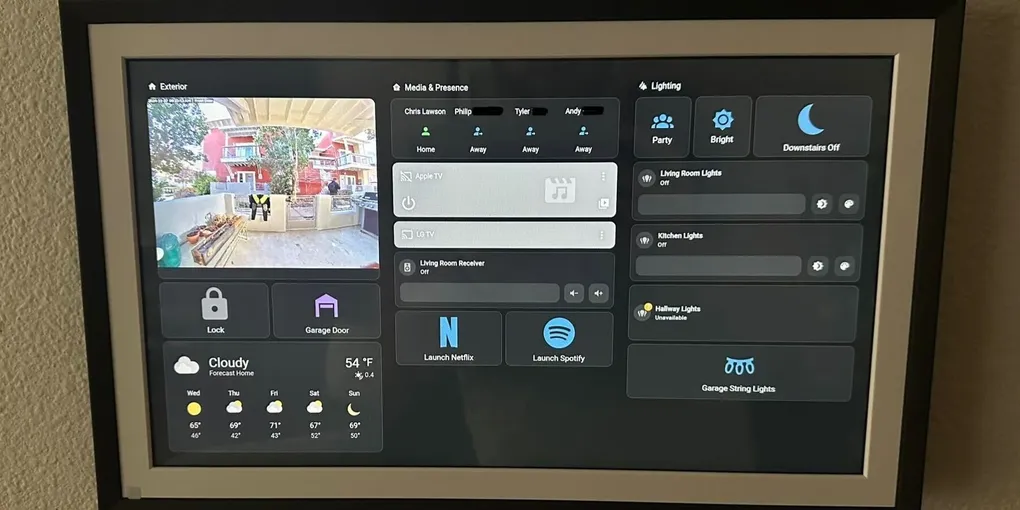
I wanted a screen that just… existed. Not another phone to unlock. Not a tablet that falls asleep mid-thought. Something on the wall that quietly answers “is the garage closed?” and “what’s the AQI doing?” without turning into a second job.
Consumer digital photo frames are oddly perfect for that. They’re cheap for the panel size, already designed to hang around looking intentional, and (if you pick the right ones) they’re basically Android tablets that happen to ship with a slideshow app and a smile.
I went with a Nexfoto 15.6″ FHD (Android 10). FRAMEO-class frames have a lively jailbreak/root community; mine answered adb shell whoami with root out of the box, which felt like finding a spare key taped under the doormat.
Want the workshop manual up front? → Full guide + comments on GitHub Gist
What it looks like day to day
Fully Kiosk Browser boots into Home Assistant and stays there. Touch when you need it; ignore it when you don’t. There’s a short demo video if you want to see the idle → tap → dashboard loop.
The shape of the build
The high-level path is simple even if the edges are sharp:
- Wake developer mode / ADB (or discover it’s already awake).
- Confirm root, or join the club that’s already documented how to get there for your SKU.
- Sideload Fully Kiosk Browser, point it at your HA URL, lock it down as a kiosk.
- Optionally replace the ancient system WebView and strip bloat so the UI doesn’t feel like 2018 called and wants its Chromium back.
The USB cable matters more than it should. A “dumb” USB-A → USB-C cable talked to the frame; a USB-C → USB-C MacBook charger cable did not.
Sharp edges (so you don’t have to find them the hard way)
Fully Kiosk will disable USB debugging by default. Fix that in Device Owner settings immediately, or you can brick yourself into a pretty black rectangle. I learned this the honest way and recovered with the hardware reset buttons on the bottom of the panel: factory wipe as a teaching moment.
A few other lived-in notes:
- The included IR remote is ornamental. Touchscreen wins.
- Wi‑Fi that “forgets” itself when the uplink dies is a real personality trait. Forced Wi‑Fi in Fully Kiosk helps with that!
- Motion wake is half-finished on my unit and I never prioritized it.
- Updating WebView (LineageOS
com.android.webviewbuild compatible with Android 10 / the right ABI) made HA feel dramatically less sad.
Where can I learn how to do this?
The full step-by-step lives on a GitHub Gist: ADB commands, Fully Kiosk settings, mount -o rw,remount /product, package names worth disabling — the workshop manual. People keep commenting there too (bug reports, alternate SKUs, “this cable worked for me”), so that’s also where the useful chaos lives.
→ Full guide + comments on GitHub Gist
This post is the story and the overview. Follow the gist when you’re ready to build one.
Was it worth it?
Yes. It’s a dedicated glance surface that doesn’t compete with my phone’s notification gravity well. It’s also a reminder that “smart home UI” doesn’t have to mean another glass slab designed to steal an hour of your attention. Sometimes it just means a frame that used to show grandma’s vacation photos, now showing whether the laundry is done.